
Coolify is a self-hosted platform that serves as an alternative to Platform as a Service (PaaS) services like Vercel, Heroku, and Railway. With Coolify, users can deploy and manage various applications and services independently through an easy-to-use web-based interface. In this article, we will show you how to install Coolify Self-Hosted PaaS on Ubuntu 26.04.
With Coolify, you can manage various types of services, such as:
- Static websites.
- Docker-based applications.
- MySQL, PostgreSQL, Redis, MongoDB databases, and more.
- GitHub and GitLab repositories.
- Free SSL certificates from Let’s Encrypt.
- Application backup and monitoring features.
Supports various programming languages and frameworks. It has a simple and easy-to-use web interface. With these features, Coolify is an attractive solution for developers and server administrators who want to build a modern deployment environment with full control over the infrastructure used.
Prerequisites to Set Up Self-Hosted PaaS on Ubuntu 26.04
- An Ubuntu 26.04 server with at least 4GB of RAM
- SSH root access or a regular system user with sudo privileges
Conventions
# – given commands should be executed with root privileges either directly as a root user or by use of sudo command
$ – given commands should be executed as a regular user
Step 1. Log in to the Server and Update the System
Before we create a self-hosted PaaS on Ubuntu 26.04, we need to log in to your Ubuntu 26.04 VPS through SSH as a root user or as a regular user with sudo privileges.
ssh root@IP_Address -p Port_numberIf you cannot log in as root, remember to substitute “root” with a user that has sudo privileges. Additionally, change “IP_Address” and “Port_Number” make sure it matches your server’s respective IP address and SSH port.
You can check whether you have the correct Ubuntu version installed on your server with the following command:
# lsb_release -aYou should get this output:
No LSB modules are available.
Distributor ID: Ubuntu
Description:    Ubuntu 26.04
Release:    26.04
Codename:   resolute
That’s it; the system package information should be updated now.
Step 2. Install Dependencies
Coolify installation requires a fresh operating system with no services installed. We need to install the following packages, just to make sure they are installed on your Ubuntu server.
# apt install curl wget git ufwStep 3. Install Coolify
In this step, we will install Coolify using the author’s installation script. Let’s run the command below.
#curl -fsSL https://cdn.coollabs.io/coolify/install.sh | bashThe installation script will automatically download and install Docker, Docker Compose, Coolify, SSL, and all other components required by Coolify, making the installation process much easier.
During the installation process, the system will install the following components:
Docker Engine
Docker Compose
Coolify Containers
Required Docker Networking
Wait for the installation process to complete. The terminal will display the access URL and the port used (default: 8000).
Once the installation is completed, you will see this:
==========================================
   Coolify upgrade to 4.1.2 in progress
==========================================

   The upgrade will continue in the background.
   Coolify will be available again shortly.
   Log file: /data/coolify/source/upgrade-2026-07-15-09-20-35.log
 - Coolify installed successfully.
 - Waiting for Coolify to be ready...
 - Upgrade in progress: Starting new containers (0s)
 - Upgrade in progress: Starting new containers (10s)
[2026-07-15 09:23:20] Upgrade completed: Upgrade complete
 - Upgrade complete!
 - Verifying Coolify is healthy...
[2026-07-15 09:23:20] Coolify container is healthy
 - Coolify is ready!

   ____                            _         _       _   _                 _
  / ___|___  _ __   __ _ _ __ __ _| |_ _   _| | __ _| |_(_) ___  _ __  ___| |
 | |   / _ \| '_ \ / _` | '__/ _` | __| | | | |/ _` | __| |/ _ \| '_ \/ __| |
 | |__| (_) | | | | (_| | | | (_| | |_| |_| | | (_| | |_| | (_) | | | \__ \_|
  \____\___/|_| |_|\__, |_|  \__,_|\__|\__,_|_|\__,_|\__|_|\___/|_| |_|___(_)
                   |___/


Your instance is ready to use!

You can access Coolify through your Public IPV4: http://123.123.123.123:8000

If your Public IP is not accessible, you can use the following Private IPs:

http://10.0.0.1:8000
http://10.0.1.1:8000
http://fd3d:831c:56fa::1:8000

WARNING: It is highly recommended to backup your Environment variables file (/data/coolify/source/.env) to a safe location, outside of this server (e.g. into a Password Manager).


============================================================
[2026-07-15 09:23:21] Installation Complete
============================================================
[2026-07-15 09:23:21] Coolify installation completed successfully
[2026-07-15 09:23:21] Version: 4.1.2
[2026-07-15 09:23:21] Log file: /data/coolify/source/installation-20260715-091947.log
Now, you can open http://YOUR_SERVER_IP_ADDRESS:8000 using your favorite web browser.
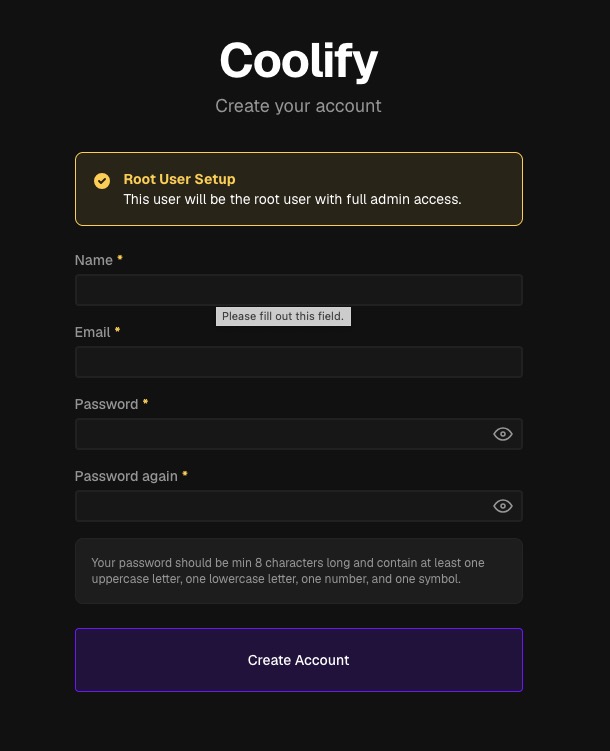
In this step, we will create a new administrative user. Fill in everything, make sure to use a strong password, then click on the Create Account button to submit.
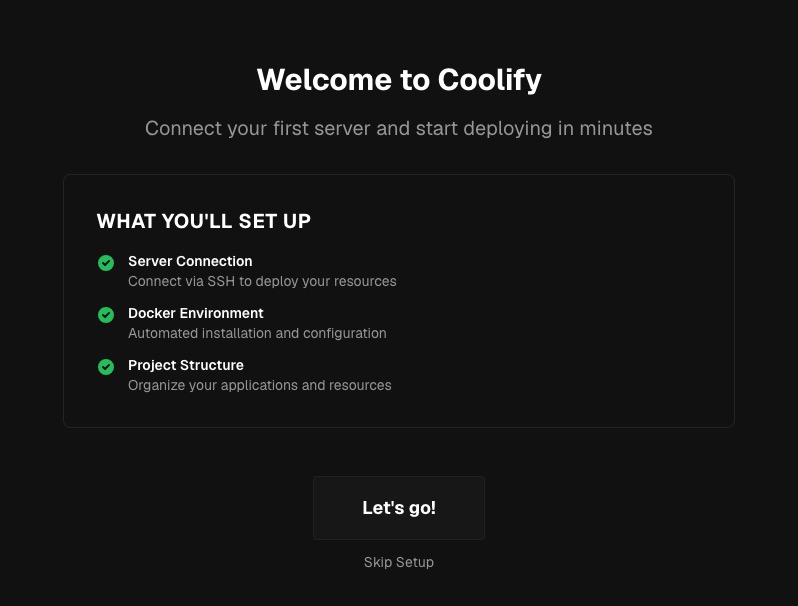
Here, you can configure a new server; click Let’s go to proceed, or skip this step.
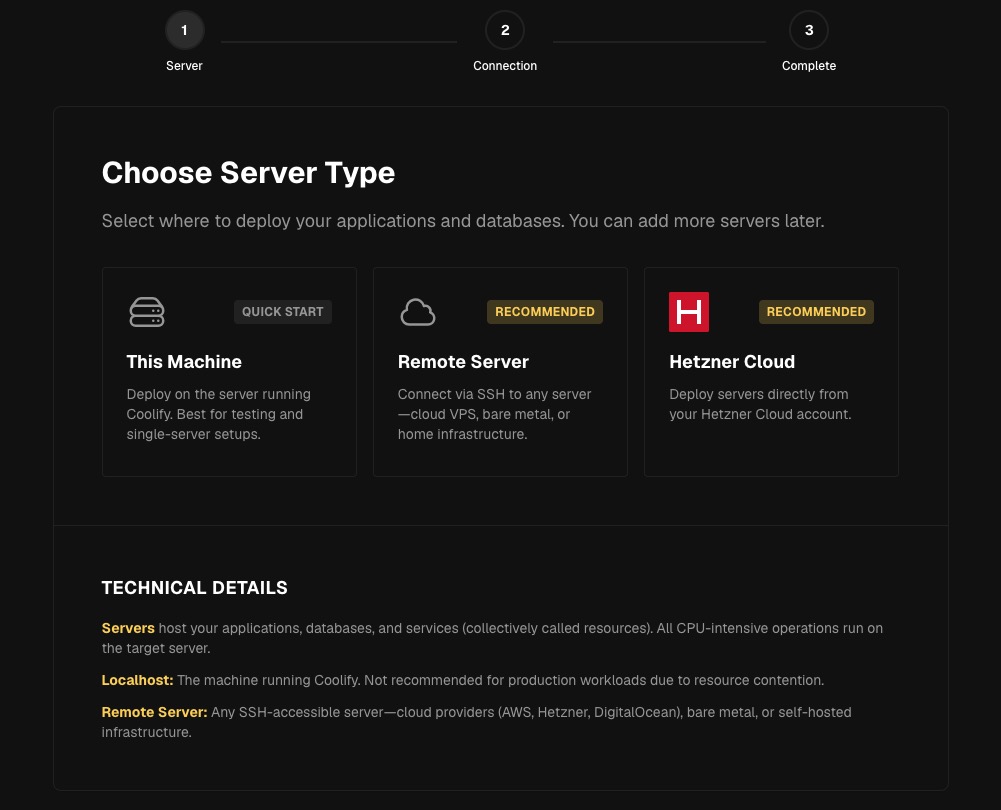
In this step, you can choose This Machine as the server type for testing purposes.
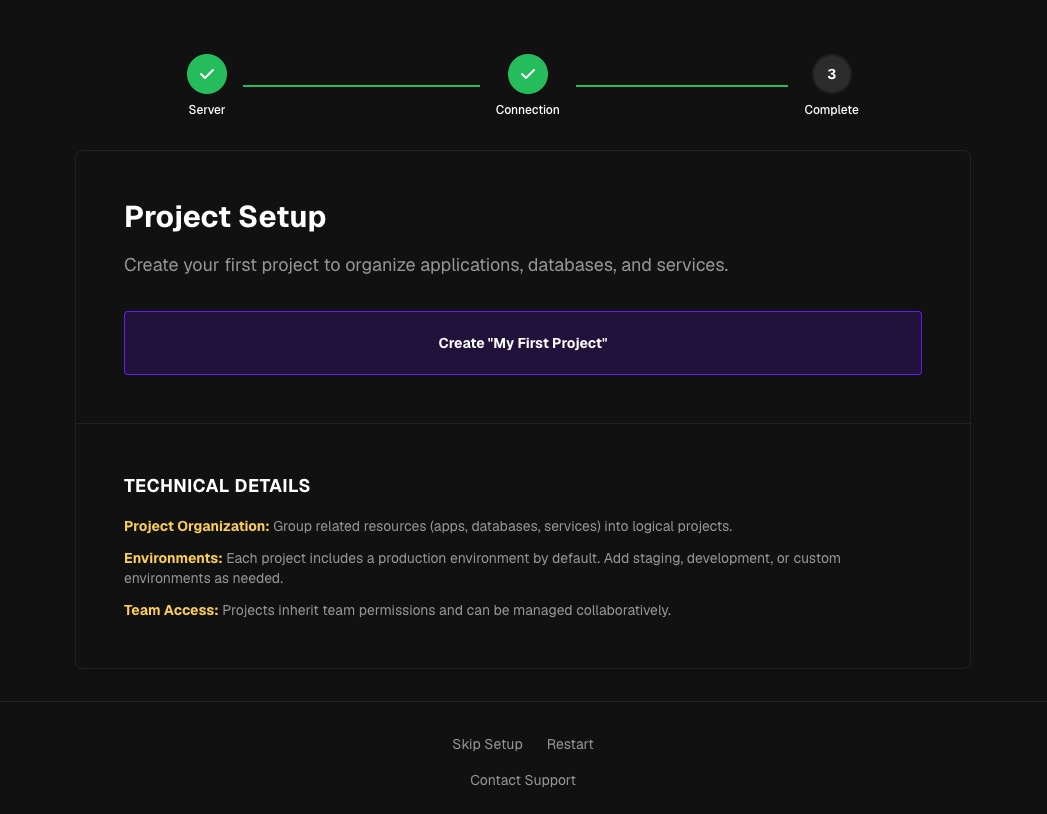
You will be redirected to this page; click on the “Create My First Project” button.
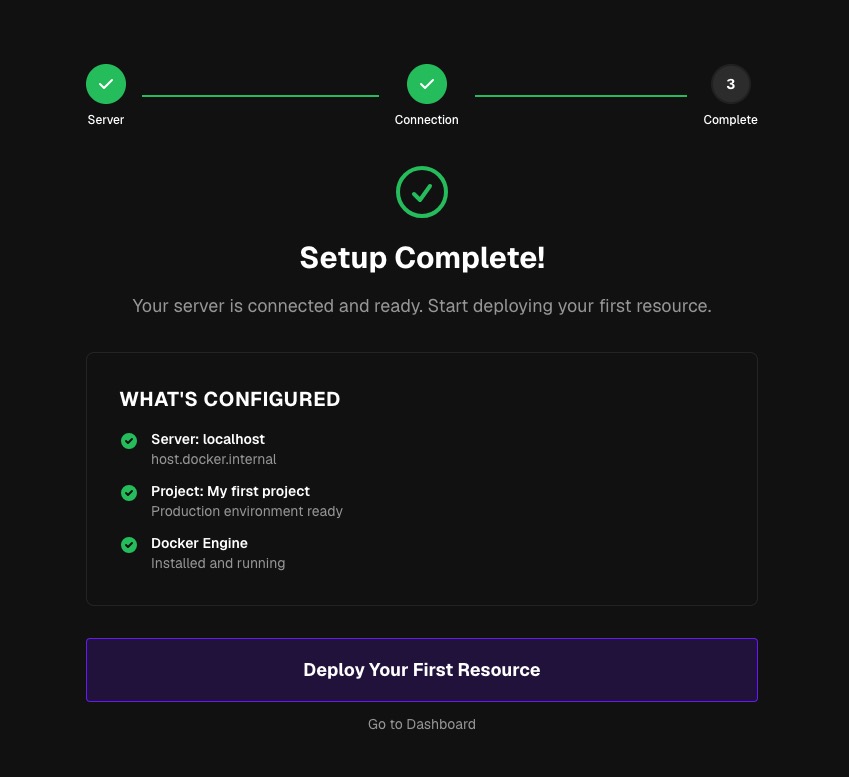
Next, you can click on the Deploy Your First Resource button or go to the dashboard link.
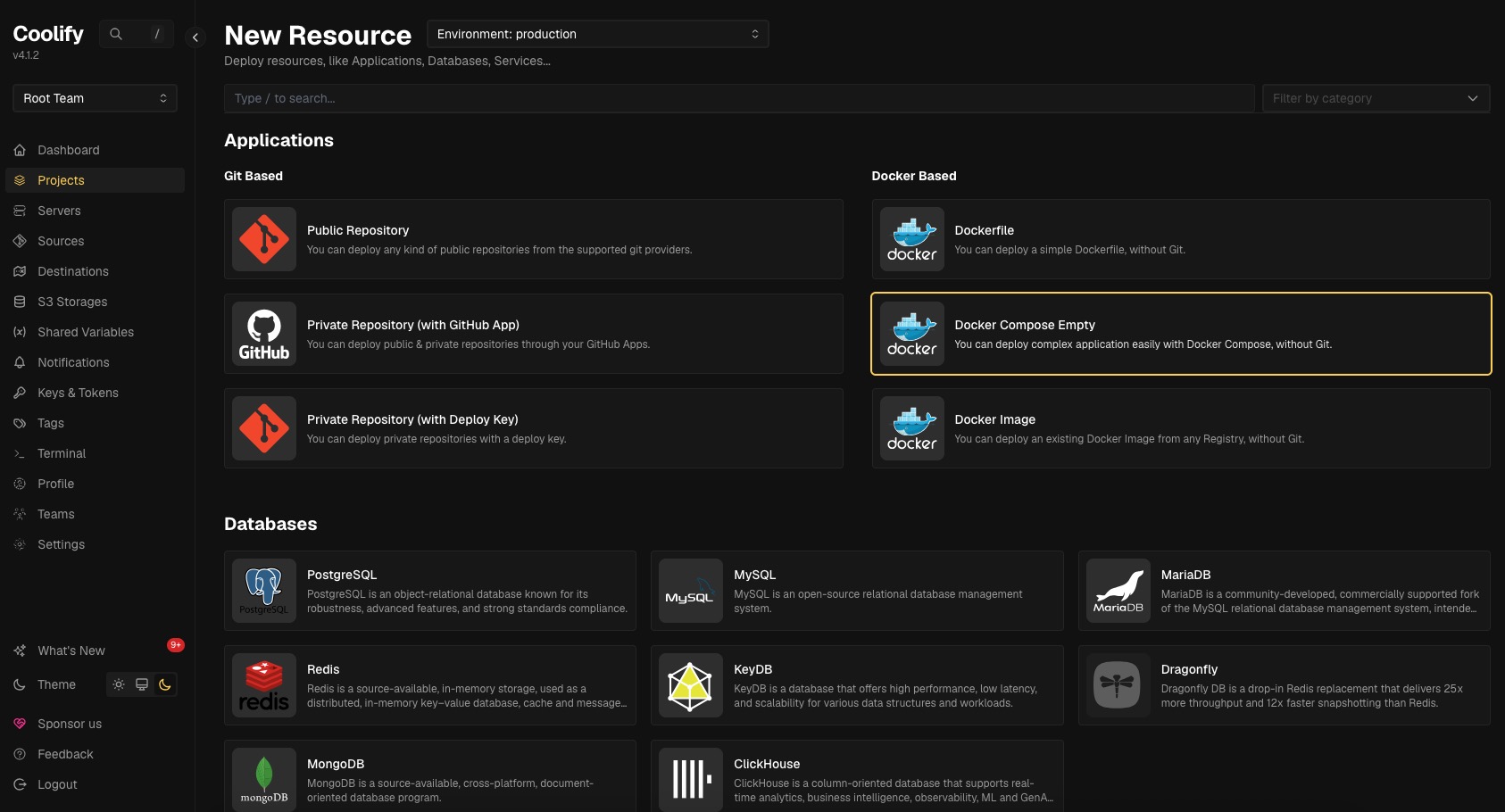
You will be redirected to the Coolify dashboard.
Congratulations! You have followed this article and successfully installed Coolify PaaS on Ubuntu 26.04. You can now start using Coolify and deploy your applications.
Coolify’s Pros and Cons
These are some pros and cons of Coolify Self-Hosted PaaS.
Pros
- Free and open-source – no subscription fees, just pay for the VPS
- Full control – root access to the server; you can customize anything
- No vendor lock-in – all configurations are stored on your server; if you stop using Coolify, the container will still run
- Complete Git integration – GitHub, GitLab, Bitbucket, Gitea, and other Git providers
- Automatic SSL – Let’s Encrypt, free, auto-renew
- 280+ one-click services – from databases to CMSs, everything is just a click away
- Multi-server – deploy to multiple servers via SSH, at no extra cost
- Powerful API – for automation and CI/CD integration
- Active community – Discord 19K+ members, GitHub 58K+ stars
- Automatic backup – to S3-compatible storage with one-click restore
Cons
- Maintenance is your responsibility – updates, security patches, monitoring are all handled by you
- Updates can be breaking – although rare, they still require caution
- Server resource requirements – 2GB of RAM is the absolute minimum. 4GB is more realistic
- Docker Swarm is deprecated – it will be removed in v5, so if you’re using Swarm, you’ll need to migrate.
- The UI is sometimes buggy – the Coolify team fixes them quickly, but sometimes edge cases are overlooked.
- No managed DNS – you manage your own DNS (but this is normal for self-hosted systems).
- Documentation is sometimes lacking in detail – it is, but some advanced topics require reading the source code or asking on Discord.
You Now Have A Self-Hosted PaaS on Ubuntu 26.04
That’s it all!
If you want to host a Coolify Self-Hosted PaaS website with high-end hardware at an affordable price, look no further – our VPS hosting plans will let you host any software you want with dedicated resources. You can start with our LCVPS 4 plan and upgrade it later when needed. If you require setup assistance, you can look for a reputable MSP to take care of the installation for you.
If you liked this post about how to set up Coolify as a self-hosted PaaS on Ubuntu 26.04, please share it with your friends or leave a comment in the comments section below.